Free video calls for tutors
Send a meeting link and work through the material together. Show a maths problem clearly, practise a language with words in the chat, or discuss code and the reasoning behind it. Start on the free plan.
Meetings, screen sharing and chat. Recording: up to 2 hours, stored for 30 days.
Planaro editorial team · Updated 20 November 2026
Start with a link, not an installation guide
Send the student a meeting link, date and time. They can open it in a browser, enter a name and join as a guest. They do not need an account just for an introductory lesson.
For a child, send the invitation to the adult helping them connect. Say whether they need a microphone, camera, textbook or document. Test a phone connection before the lesson begins.
Maths: make the whole problem readable
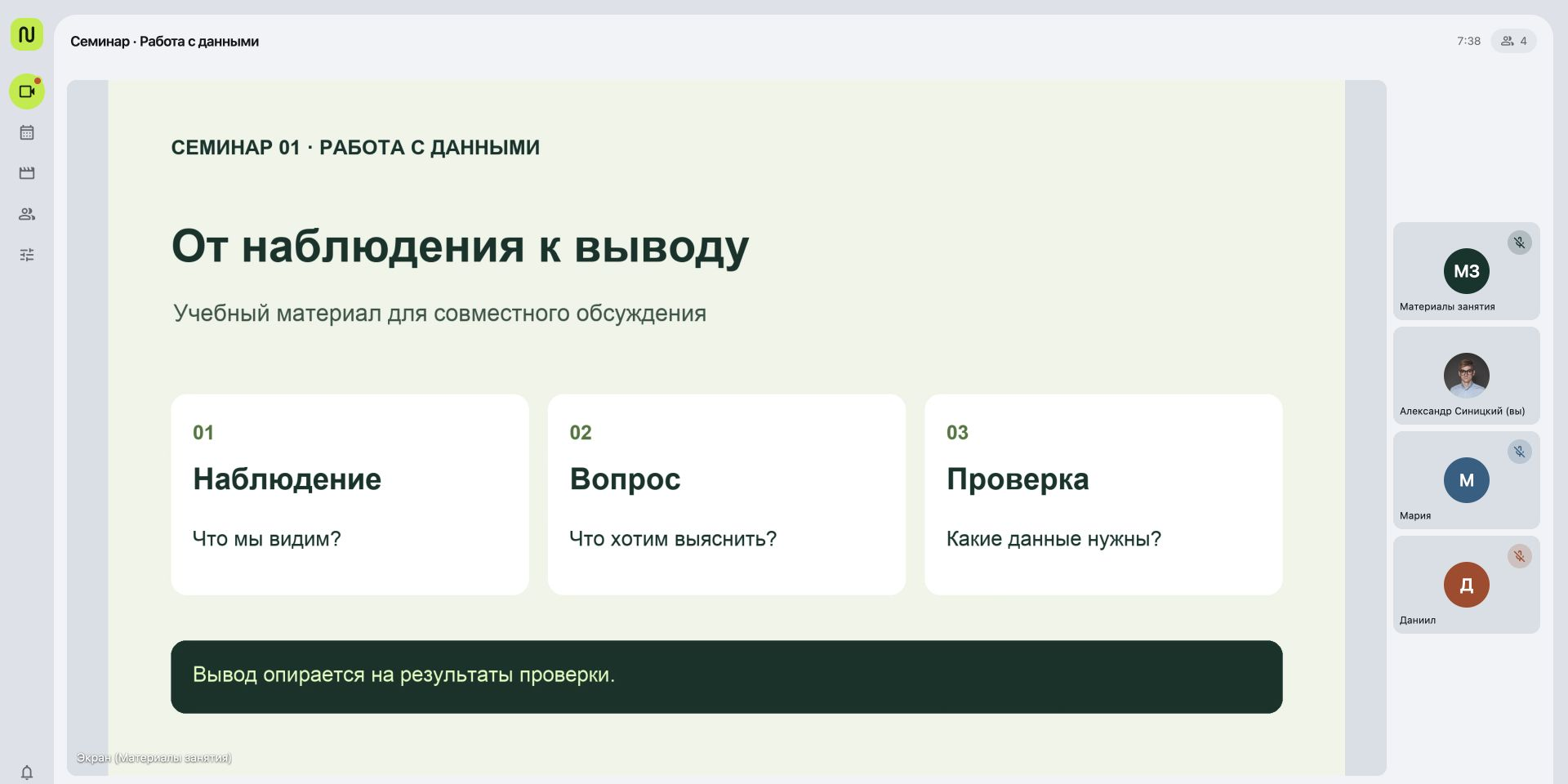
Open the problem in a PDF, presentation or editor and share the window. Increase the zoom so symbols and subscripts are visible. If you use a separate whiteboard or document, Meet shows it through screen sharing.
Agree how the student will send handwritten work, such as a photo, document or camera view. A recording transcript should not be treated as a reliable transcription or assessment of mathematical notation.
Languages: conversation and the written example
Use audio and video for conversation and the chat for a word, correction or reading link. Share a document to discuss one passage together.
A recording can help a student revisit an explanation if you agreed to keep it. Test transcription with the languages and material you actually use. It is not an automatic assessment of pronunciation or language level.
Programming: focus on the working window
Share the editor or browser showing the result. When screen sharing is available in the room, the student can show their own work and explain a change. Check the room’s sharing arrangements before relying on that workflow.
Meet does not execute code or replace a repository. Keep assignments and finished files in your usual tool. Present a separate project without private tokens or confidential data.
Keep recurring lessons organised
You can schedule meetings through the Planaro calendar. Use a clear title and check the time zone. If you reuse a room, make sure only the intended student or family has its link.
Create a separate meeting for a new student. Avoid putting a personal teaching room in a public timetable.
Leave the student with the right material
Keep assignments in your chosen course tool. If you recorded an explanation, wait for processing, review it and check how you will deliver it. A personal lesson recording should not become publicly available by default.
Agree on what you will send afterwards: a source document, exercise, reference link or recording. The follow-up should fit your teaching format.
Working with recordings →Check the first connection
- You can hear each other without a second nearby audio source causing echo.
- The material is readable on the student’s device.
- Changing documents does not expose personal windows.
- The next lesson has a clear date and time zone.
- Your plan covers the session length and features you need.
Questions before you start
Can I use my own online whiteboard?
Yes. Open it separately and share its window. Student editing depends on the whiteboard and the access you grant there.
Does every student need to buy a plan?
Students can join as guests without an account. Check the pricing page for current organiser and participant terms.
Will a transcript be ready the moment the lesson ends?
Wait for recording processing and review the text first. This workflow does not promise an immediate turnaround.
Choose a subject
Bring your next lesson together
Test the connection with a colleague, prepare your materials and send the invitation to your class.