Free video meetings for lectures and seminars
A shared room for the teacher and the class: slides on screen, a voice in your headphones, and questions in the chat. Use it for a remote lecture, an exam consultation or a project discussion. Start on the free plan.
Meetings, screen sharing and chat. Recording: up to 2 hours, stored for 30 days.
Planaro editorial team · Updated 20 November 2026
Give lectures and seminars different meeting routines
A lecture centres on the teacher’s explanation. Open the presentation in its own window and let students know where to ask questions: in the chat as you go, or by voice after each section. Participants can mute their microphones when they are not speaking; headphones help prevent echo.
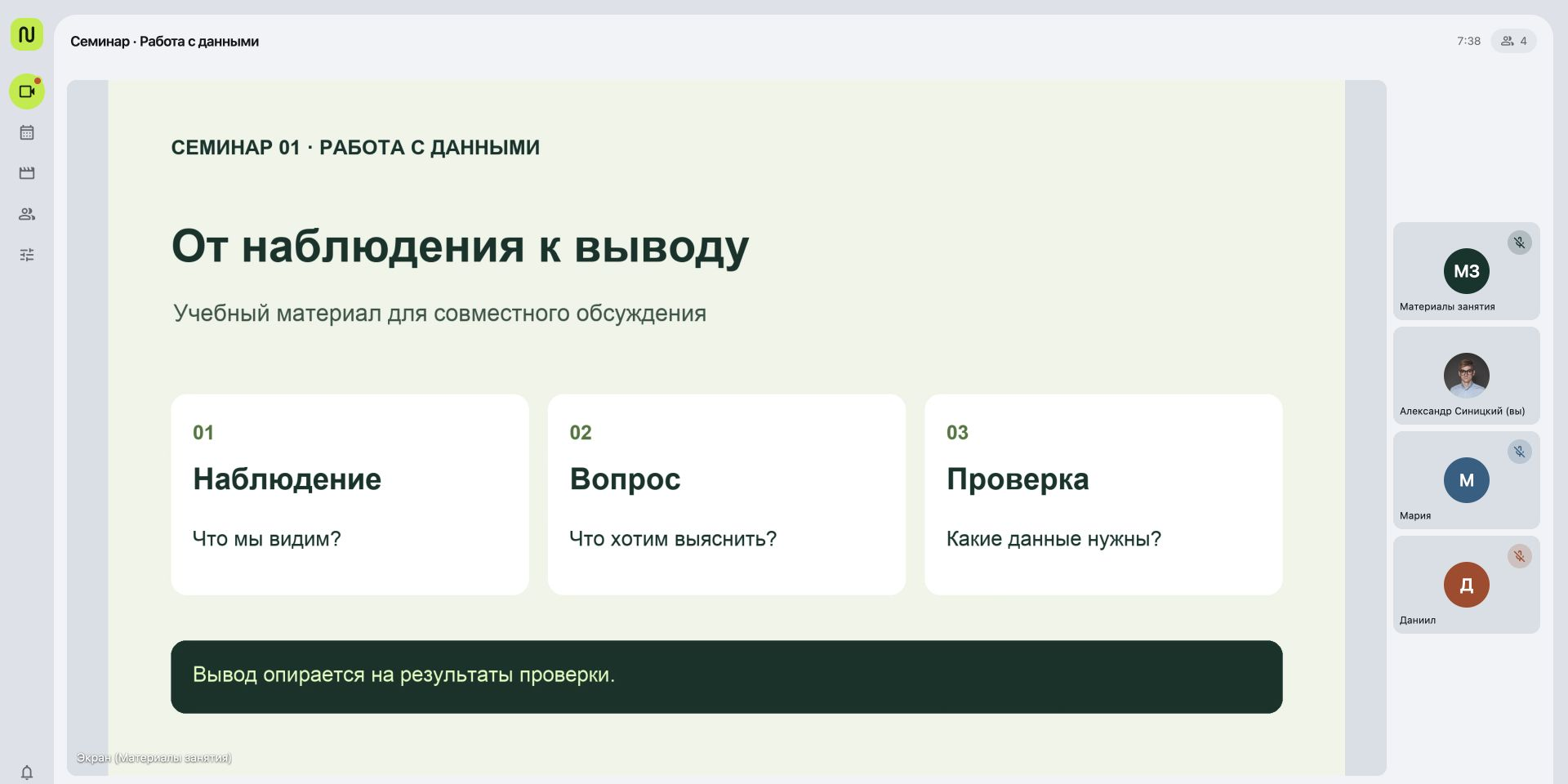
A seminar needs a quicker exchange. Share a particular project, table or piece of code, then return to discussion. This is a single shared conversation. If groups need to work in parallel, arrange separate rooms and how students will move between them.
Invite the class
- Create a meeting with a recognisable subject, class and topic.
- Copy its link into the timetable or course section.
- Add the date, time zone and a short guest-joining instruction.
- Test the link on a phone and from the institution’s network.
Separate meetings help keep different cohorts apart. Avoid reusing a widely shared invitation for a different class unless that access is intentional.
Share the material, not an untidy desktop
Open the slides or PDF before class. Choose a window, tab or screen in the browser’s sharing dialog. Check what students see when moving to another application: sharing one window does not share every other window.
Increase the font size in a code editor. Present slides without private speaker notes. Keep the original files in the course portal so students can read them independently of the screen share.
Keep questions visible
The meeting chat works for questions, links and short responses. A slide number or heading makes a question easier to revisit. For a larger class, agree whether the teacher or an assistant will collect questions.
Keep attendance and grades in your learning system. A live call should not be treated as an automatic record of a student’s engagement or understanding.
When students join on phones
Watching a desktop screen share in the Planaro mobile app has been tested. Use one large, readable piece of material at a time and provide a link to the source document as well.
A quiet place and headphones help. Connections can break while travelling, so simply being present in a room does not establish that someone heard the whole lecture.
After the session
If you recorded the class, wait for processing and review the sound and slide readability. Check specialist terms, dates and numbers in the transcript before sharing it.
Put materials in the usual course location. Test recording access from a student’s perspective: a link that opens for its owner may not be accessible to the whole class.
Read the lecture recording guide →Check the setup before the course starts
Check current Planaro limits against the simultaneous class size, session length and recording needs. Run a short trial with a colleague on the devices and networks you expect to use.
You can add a standard meeting link to Moodle. This keeps course administration in the learning platform and the live session in Meet, without implying automatic gradebook or assignment synchronisation.
Add a meeting to Moodle →Questions before you start
Do students need to install a desktop app?
They can open the meeting link in a browser and join as guests. Test the connection and microphone permissions before the first class.
Can I show a PDF or code editor?
Yes. Open it on your computer and share the relevant window or screen. Increase text size for smaller screens.
Will this fill in my attendance register?
Automatic attendance and grading are not part of this workflow. Keep those records in your learning system.
Bring your next lesson together
Test the connection with a colleague, prepare your materials and send the invitation to your class.