You choose when to record
A participant with the required permissions starts the recording. Get everyone’s agreement first and explain why you are recording the conversation.
Keep the conversation so you can check an answer, revisit a shared screen or catch up later. After processing, open the recording alongside its transcript in Planaro.
A participant with the required permissions starts the recording. Get everyone’s agreement first and explain why you are recording the conversation.
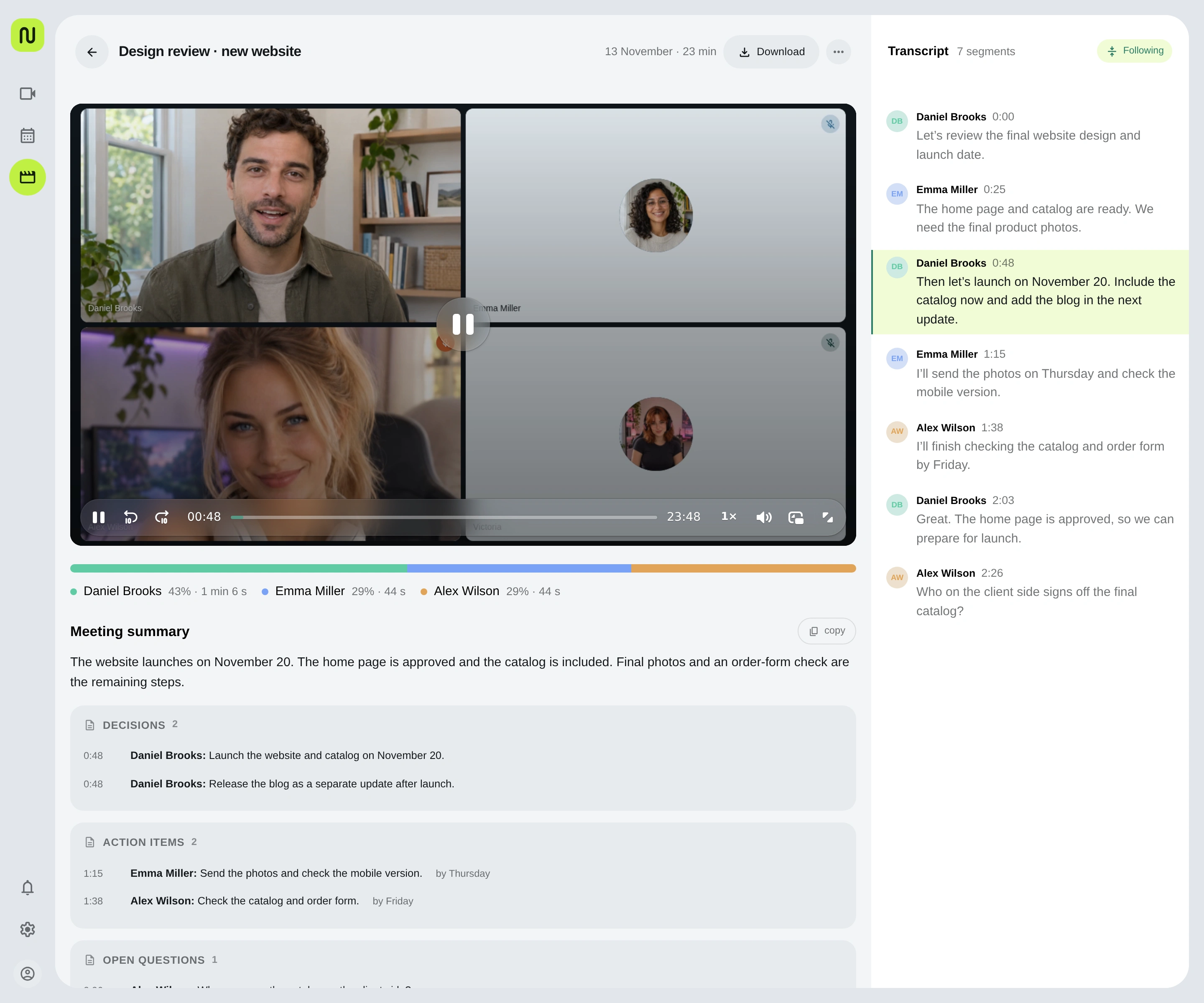
After processing, the recording appears beside a speaker-labelled transcript with timestamps. Select a line to jump to that moment in the video.
Download a processed recording as an MP4 for your own archive. Check access and retention periods before relying on it as your only copy.
The Planaro recording screen brings the player, transcript and summary together.
Make sure everyone can be heard and that you have permission to start recording. Agree who needs access to the materials afterwards.
Use the room controls to start recording and stop it when you finish. Processing takes time, so the finished file is not available immediately.
Open the recordings section, select a meeting and check the playback. If you need your own archive, download the finished MP4 and make sure that the file opens.
A recording card alone does not prove the finished file is ready. Check playback and retention, download important materials and keep key decisions in a short written summary.
No. Someone with the required permissions must start recording in the room. Joining a meeting does not automatically save it.
Processing starts after recording finishes. The time required depends on the recording and processing queue. Check its status in the recordings section.
Processed recordings can be downloaded as MP4 files. If the option is unavailable, check the processing status and your access permissions.
The default retention period for video and audio files on the free plan is 30 days. After those files expire, authorised users can still access the transcript and summary.