Get a meeting transcript and review the summary
Use the transcript to find a particular moment and the summary to review decisions. Here is how to check and work with both after a recorded meeting.
The transcript follows the conversation; the summary highlights its outcomes. They serve different purposes, and both need checking for important details.
Planaro Editorial · Updated November 8, 2026
Step by step
Make sure the meeting was recorded
A transcript needs a recording to process. If nobody started recording, do not expect a transcript after the meeting.
Wait for processing to finish
Open the meetings section and select the meeting. Check its status: processing may continue after the call ends.
Find the moment you need
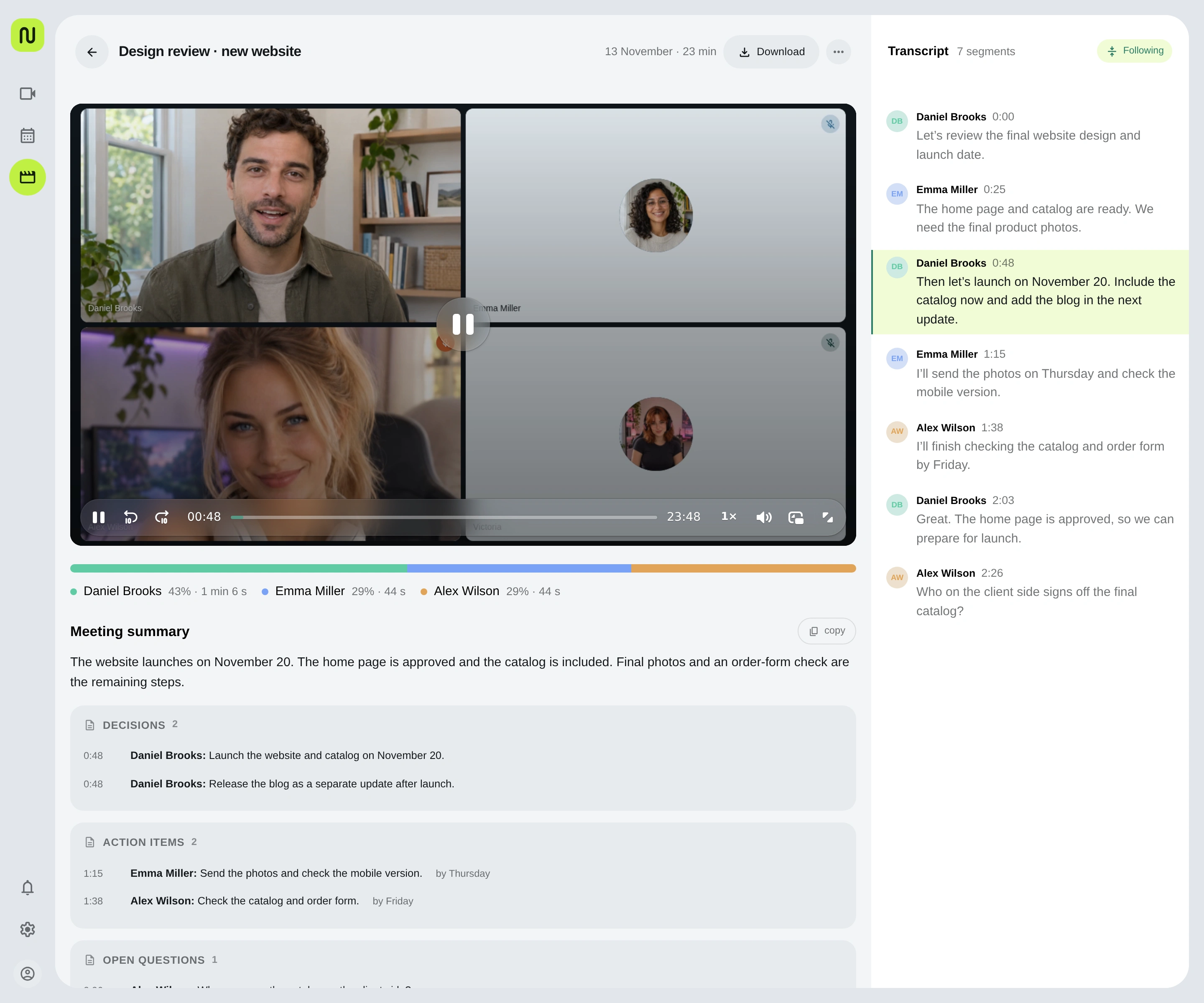
Browse the speaker-labelled text and timestamps. Open the corresponding video segment to check the context or exact wording.
Check names, numbers and dates
Check terminology, amounts and dates carefully. Overlapping speech, echo and poor microphone quality can affect transcription.
Separate decisions from open questions
Distinguish decisions from suggestions and commitments from ideas. If the conversation did not establish an owner or deadline, ask the team rather than inferring one.
Confirm and share the summary
Send participants the checked summary and move agreed actions to your task tracker. Keep a link to the relevant recording segment where wording needs clarification.
Session checklist
- The right meeting has been selected
- Processing completed
- Names and numbers checked against the recording
- Decisions separated from proposed options
- Action owners and deadlines confirmed
If you have any difficulties
If the transcript is missing, check the recording’s processing status. Check misrecognised terms or names against the original audio. Do not add deadlines or commitments that were never agreed.
Where to look for text and timecodes
Find the transcript beside the player on the recording screen.
What to check in an automated transcript
- Numbers and dates
- Check amounts, version numbers, times and deadlines against the recording. Short numbers can be misrecognised, especially in noisy audio.
- Speaker and context
- Check who said something and what they were discussing. An option mentioned in conversation is not necessarily an agreed decision.
- Action items
- Include agreed actions only. If no owner or deadline was named, mark it for clarification.
Before your first meeting
Can I treat the automated summary as final?
Use it as working material. Verify important details and confirm agreements with participants.
Why are some words recognized incorrectly?
Accuracy depends on microphone quality, background noise, overlapping speech and terminology. Check important details rather than assuming every conversation will be transcribed equally well.
How should I share the outcome with a client?
Send a short, checked list of decisions, open questions and next steps with an owner for each action. Confirm it through your usual communication channel.