For teachers, tutors and study groups

Teach Automation Online with Planaro

Keep the trigger condition, state and result together. Use Planaro to review a teaching control model or a student’s prepared report.

Keep your materials in the tools you already use. Explore Planaro Meet.

Start with the teaching task

Connect a state change to the condition that triggers it

A teaching model performs an action, but the student cannot identify the condition behind it. Share the input, transition rule and resulting state together.

Open the prepared diagram or offline simulation in Meet. The student can explain the sequence and what changes at each step.

A teaching control sequence

  1. InputWhat information reaches the model?
  2. ConditionWhat must be true?
  3. ActionWhich state follows?
A discussion framework for teaching logic, without controlling real equipment through Meet.
A session in Planaro

A shared view of the work you are discussing

Open the material in your usual application on a computer and share the relevant window in Planaro Meet. Meeting chat keeps a source link, question or short note alongside the conversation.

A learner can join by link as a guest. To review their work, a participant on a computer can share their own window after the current share ends. Use the Planaro calendar to arrange a follow-up session.

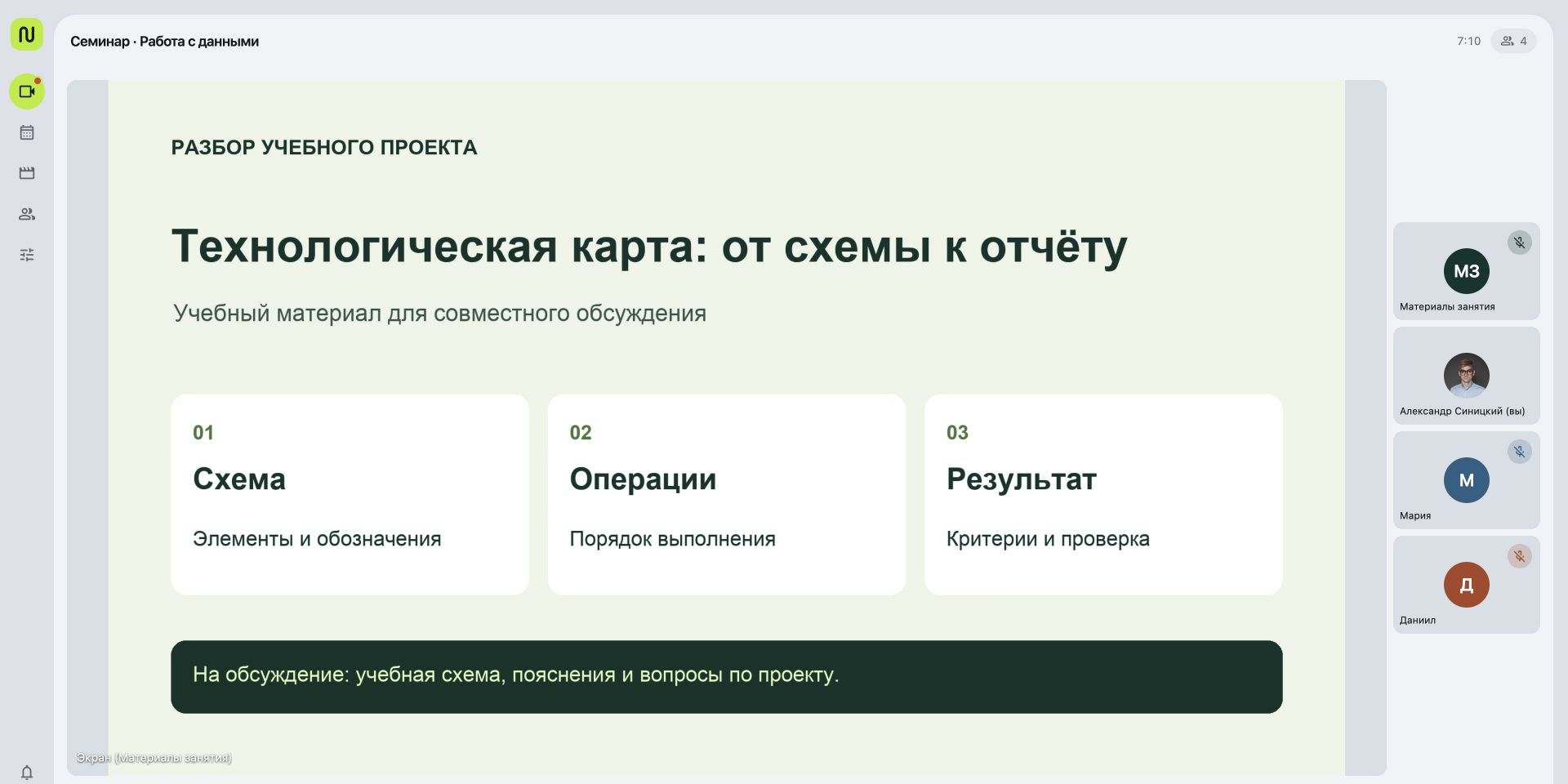
Planaro Meet showing shared teaching material beside the participants.
Teaching material shared in a Planaro Meet session. View full size ↗

Retain the structure and labels

Share blocks, inputs and outputs with clear names. Keep a common definition when one parameter appears in several places.

Prepare a known initial state so the demonstrated sequence can be reproduced.

Follow a condition and transition

Change the selected input in the teaching tool and show the result. Compare the transition with the written algorithm.

State the condition separately for a boundary case. Calculations and simulation run in the external application.

Review a report or independent exercise

A student can share a computer window and explain a prepared scenario. Connect feedback to a particular block or stage.

Equipment-based practical work follows the teaching site’s arrangements. The meeting supports discussion of diagrams and results.

Keep a reproducible scenario

Retain the model version, inputs and checking sequence. Identify the change to bring to the next tutorial.

Record by agreement, storing the original diagram and parameters separately from the video and transcript.

Before the first session

Can I share a teaching simulator?

Yes. Open it on your computer and share its window in Meet.

Does Meet send commands to equipment?

In this workflow control stays in the external teaching environment. Meet provides conversation and screen sharing.

Does a learner need an account?

A participant can join an invited meeting as a guest. The organiser creates the meeting from their account.

Bring the next question into a shared view

Start with one task or question. Open the source material, create a meeting and send the invitation to your learners.