For teachers, tutors and study groups

Teach Programming Online: Code Reviews and Debugging

Open the project, reproduce the problem and discuss each change with the learner. Planaro brings screen sharing, voice and meeting chat to a lesson built around real code.

Keep your materials in the tools you already use. Explore Planaro Meet.

Start with the teaching task

Start with the input that makes the problem visible

A function works for one input and fails for another. Seeing the source, input and result together gives a programming lesson something concrete to investigate.

A learner can share their editor and reproduce the behaviour on their own computer. Discuss the expected result, inspect the relevant values and repeat the same case after a change.

A small example with an unresolved contract

def average(values):
    return sum(values) / len(values)
InputCurrent result
[2, 4, 6]4.0
[]ZeroDivisionError
Decide what an empty input should mean before choosing a change.
A session in Planaro

A shared view of the work you are discussing

Open the material in your usual application on a computer and share the relevant window in Planaro Meet. Meeting chat keeps a source link, question or short note alongside the conversation.

A learner can join by link as a guest. To review their work, a participant on a computer can share their own window after the current share ends. Use the Planaro calendar to arrange a follow-up session.

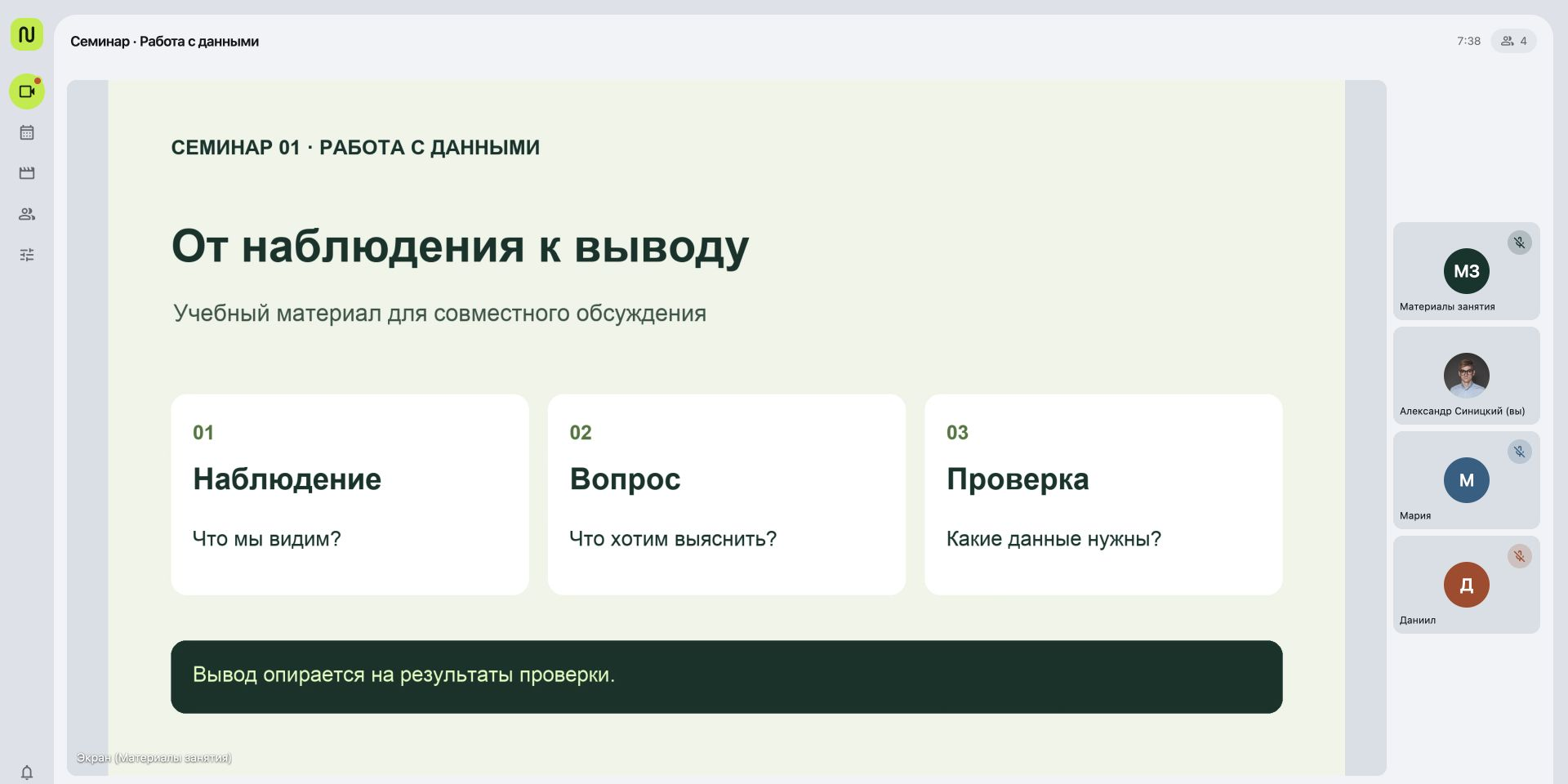
Planaro Meet showing shared teaching material beside the participants.
Teaching material shared in a Planaro Meet session. View full size ↗

Prepare a reproducible starting point

Ask the learner to have the project version, run command and relevant input ready. Compare the expected behaviour with what actually happens.

If the issue sits inside a large application, select a function, request or screen to investigate first. Keep the file and version linked from the lesson notes.

Test a hypothesis rather than changing code at random

Choose an observation that distinguishes possible causes: a variable value, a return value, a log line or a request response. Enlarge that part of the editor or terminal.

After a change, repeat the original case and a normal input. Breakpoints, tests and execution remain in the development environment; Meet provides the shared view and discussion.

Give a project review a clear question

Choose a focus such as error handling, a function’s interface or a user interaction. Show the behaviour first, then the code responsible for it.

Save the result as a repository comment, issue or lesson note. A precise next change is easier to revisit than a long list of comments about the whole project.

Match participation to the learner’s device

A student on a computer can share their own environment and perform the changes while explaining them. A group can work from separate copies of a prepared example.

The mobile app can display a computer screen shared in the call. Hands-on coding still requires an appropriate editor and device. Keep source files separately from any agreed recording or speech transcript.

Before the first session

Does code run inside Meet?

Code runs in your own environment or external teaching platform. Planaro provides the call, chat and screen sharing.

Does screen sharing let the teacher edit the student’s files?

In this workflow the student controls their environment. Arrange collaborative editing separately in the chosen editor or project tools.

Does a learner need an account?

A participant can join an invited meeting as a guest. The organiser creates the meeting from their account.

Bring the next question into a shared view

Start with one task or question. Open the source material, create a meeting and send the invitation to your learners.