For teachers, tutors and study groups

Teach Design Online with Planaro

Show the brief and the part of the design that needs discussion. Use Planaro to compare versions, hear a student’s rationale and agree the next revision.

Keep your materials in the tools you already use. Explore Planaro Meet.

Start with the teaching task

Connect feedback to the task the design serves

A critique offers an opinion about appearance, but the student cannot identify what to change. A shared view lets you locate an element and discuss its effect on reading or action.

Open the work in its design tool and share it in Meet. Keep an original beside the revision so the comparison addresses a specific change.

Three anchors for a design review

  1. TaskWhat should a person understand or do?
  2. ElementWhich area affects that task?
  3. CheckWhat changed in the revision?
The teacher selects criteria appropriate to the design discipline and assignment.
A session in Planaro

A shared view of the work you are discussing

Open the material in your usual application on a computer and share the relevant window in Planaro Meet. Meeting chat keeps a source link, question or short note alongside the conversation.

A learner can join by link as a guest. To review their work, a participant on a computer can share their own window after the current share ends. Use the Planaro calendar to arrange a follow-up session.

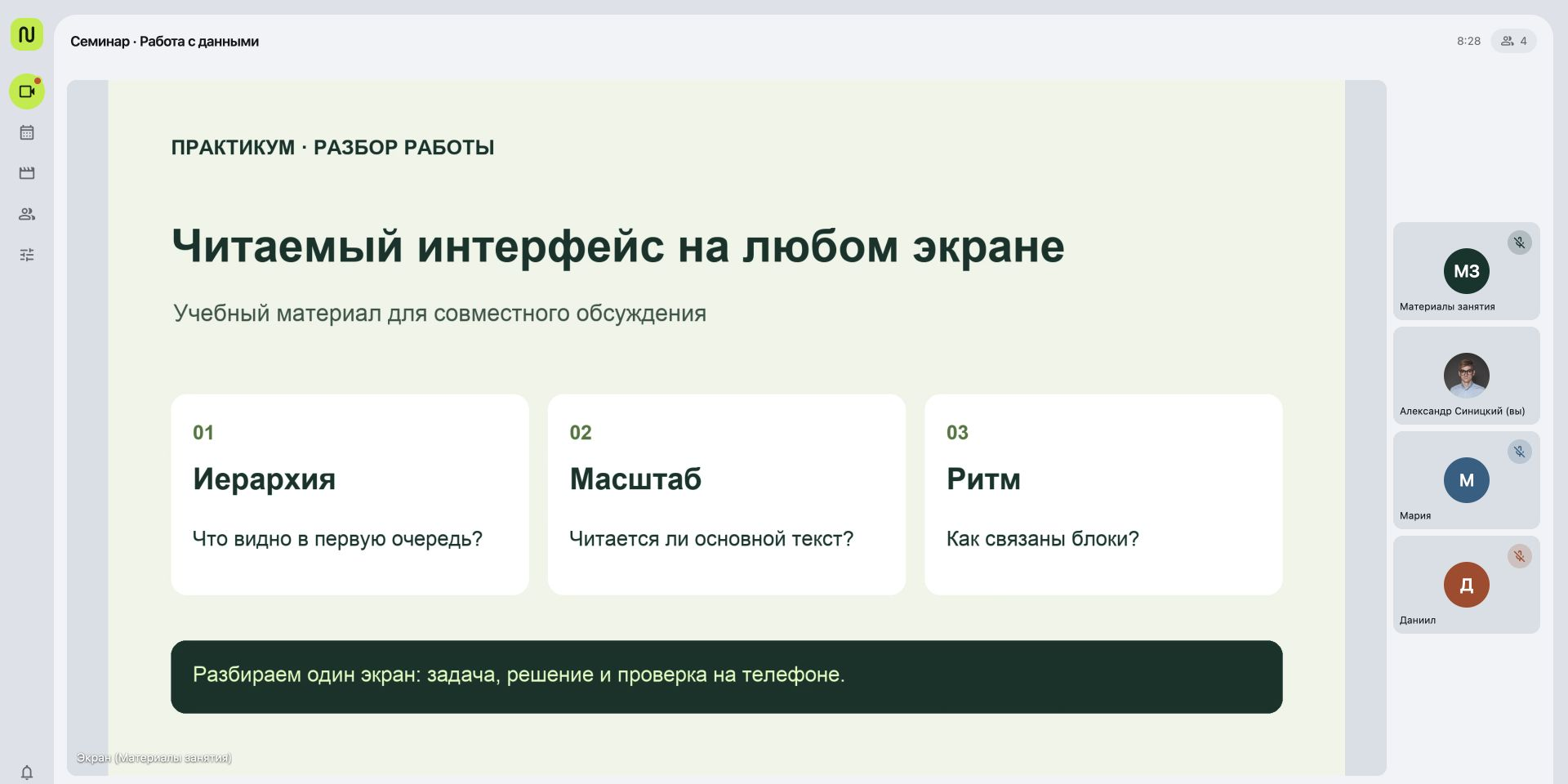
Planaro Meet showing shared teaching material beside the participants.
Teaching material shared in a Planaro Meet session. View full size ↗

Show context before detail

Start with the complete work and its purpose. Enlarge the relevant area while retaining its place in the composition.

For an interface, show the screen sequence; for graphic work, retain the intended format and use setting.

Compare versions against one question

Place clearly named alternatives together. Discuss what changes in hierarchy, readability or attention.

Revisions made during the call happen in the original editor. Meet shares the view and conversation.

Let students explain their choices

A student on a computer can share their window and walk through the rationale. Meeting chat can hold reference links.

Shared editing and file comments depend on the design tool’s access settings. Arrange project access separately from the call.

Keep the next iteration specific

Retain the criterion, selected change and work version so the next critique can return to the same task.

Record by agreement, storing the original design files separately for detailed inspection.

Before the first session

Can I share Figma or another design editor?

Yes. Open the project in its external tool and share the window in Meet.

Where do comments on the design file live?

Discuss feedback through voice or chat, and keep file-specific comments in your chosen design editor.

Does a learner need an account?

A participant can join an invited meeting as a guest. The organiser creates the meeting from their account.

Bring the next question into a shared view

Start with one task or question. Open the source material, create a meeting and send the invitation to your learners.