For teachers, tutors and study groups

Teach Math Online with Planaro

Share the problem, work through the reasoning and let the student explain the next step. Planaro brings the call, shared screen and meeting chat together while you use your own teaching materials.

Keep your materials in the tools you already use. Explore Planaro Meet.

Start with the teaching task

Make the working visible, not just the final answer

A correct answer may hide an uncertain method, while one missed sign can change an otherwise sound solution. Keeping intermediate lines visible gives an online math lesson a useful focus for discussion.

Open the problem and working in the same document or external whiteboard and share the window in Meet. You can return to a bracket, a sign or an earlier transformation without reconstructing it aloud.

A worked example to discuss

2(x − 3) = x + 4

The original equation

2x − 6 = x + 4

Expand the brackets

x = 10

Check: 2 · (10 − 3) = 10 + 4
Keep the original equation, intermediate working and substitution check together.
A session in Planaro

A shared view of the work you are discussing

Open the material in your usual application on a computer and share the relevant window in Planaro Meet. Meeting chat keeps a source link, question or short note alongside the conversation.

A learner can join by link as a guest. To review their work, a participant on a computer can share their own window after the current share ends. Use the Planaro calendar to arrange a follow-up session.

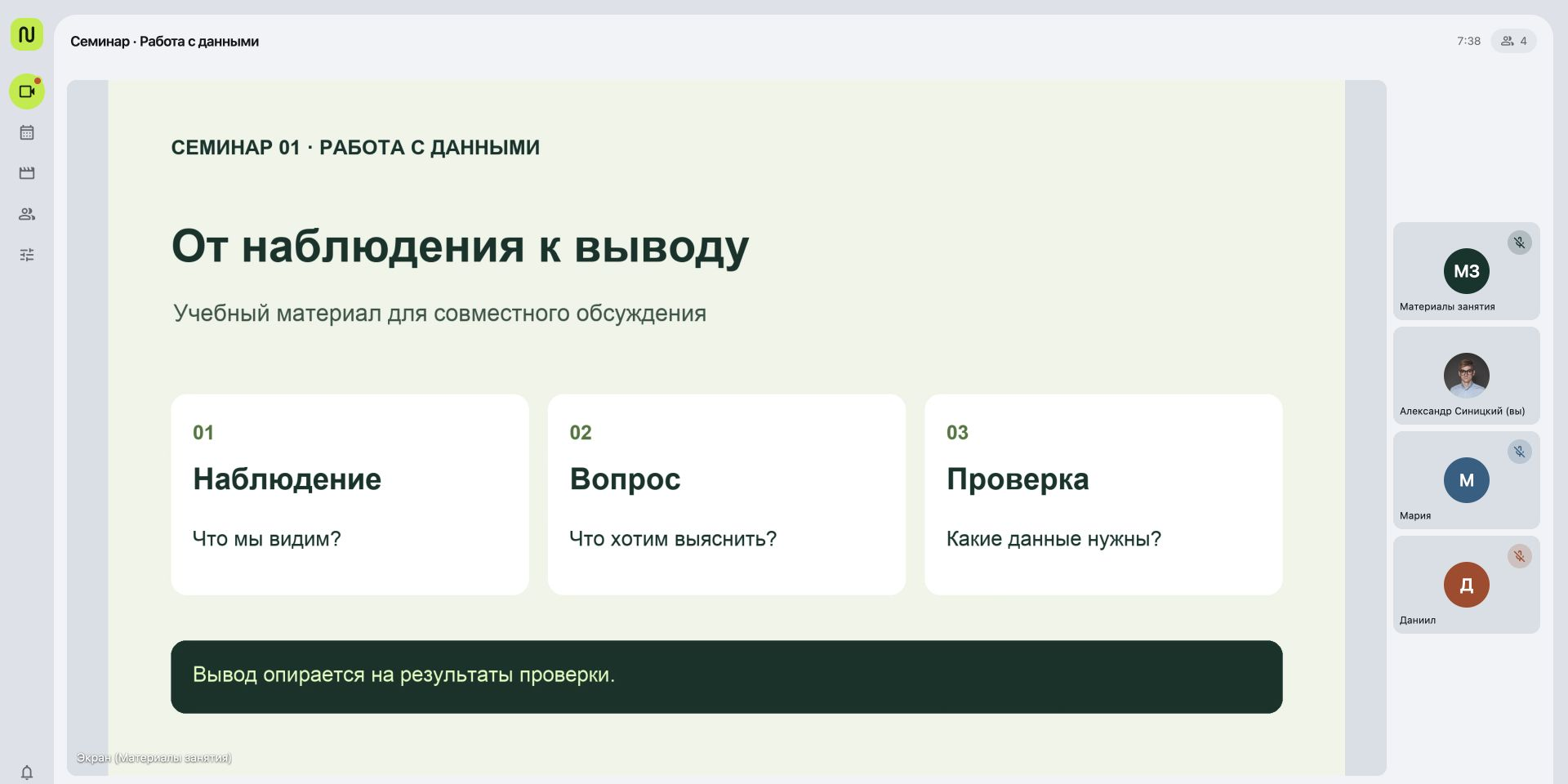
Planaro Meet showing shared teaching material beside the participants.
Teaching material shared in a Planaro Meet session. View full size ↗

Choose the writing surface for the task

For live handwriting, open your usual whiteboard or pen-enabled editor and share it through Meet. A drawing tablet may suit a teacher who writes frequently; prepared equations and diagrams also work in a document or presentation.

If the learner should edit the same board, send its own link and arrange access in that tool. Screen sharing provides the view; the external editor manages collaboration.

Keep notation readable through the explanation

Show one task at a useful size. Retain fraction bars, powers, subscripts and the labels required to interpret a drawing. For geometry, keep the statement beside the diagram where possible.

Different topics need different views: several neighbouring lines for algebra, a complete labelled figure for geometry, and the relevant task criteria for an exam response.

Let the student show their method

A student on a computer can share their window after the teacher ends the current share. They can explain the choice of method while the working remains visible.

For paper work, prepare a readable image or a camera view that clearly shows the writing. In a small group, compare two approaches to the same problem.

Prepare for a learner joining by phone

The Planaro app can display a screen shared from the teacher’s computer. Enlarge the source document rather than showing an entire desktop of small windows.

A student can follow the explanation on the phone while calculating on paper. Provide the original task separately so it remains easy to read after the call.

Leave the source working available

Keep the reviewed problem and a related practice task in your own document or course space. A recurring lesson can be scheduled in the Planaro calendar.

Record by agreement when a learner needs to revisit an explanation. Review the result before sharing it, retaining original equations and drawings because a speech transcript cannot precisely preserve them.

Before the first session

Do students need a drawing tablet?

Not for every task. A tablet can help with handwriting; prepared documents, diagrams and paper working are other options.

Does Planaro include a mathematical whiteboard?

This workflow uses your chosen external whiteboard or editor, shared through Meet. Editing access is managed in that tool.

Does a learner need an account?

A participant can join an invited meeting as a guest. The organiser creates the meeting from their account.

Bring the next question into a shared view

Start with one task or question. Open the source material, create a meeting and send the invitation to your learners.