A practical teaching guide

How to Join an Online Lesson by Phone

Check the invitation, audio and a real task before the lesson begins. This workflow covers joining by phone and viewing a screen shared from the teacher’s computer.

Keep your materials in the tools you already use. Explore Planaro Meet.

Start with the teaching task

A phone changes how much of the material is readable

A full worksheet may look clear on the teacher’s monitor but have tiny labels on a phone. Show one current passage or problem with enough context for the student to follow.

The Planaro app can display a screen shared from the teacher’s computer. Agree what the learner will do alongside it: write on paper, read a source document or use another tool.

Check before the first lesson

  1. InvitationLink, date and time zone
  2. AudioYou can hear one another
  3. MaterialThe task’s labels are readable
How the invitation opens depends on the device and installed application.
A session in Planaro

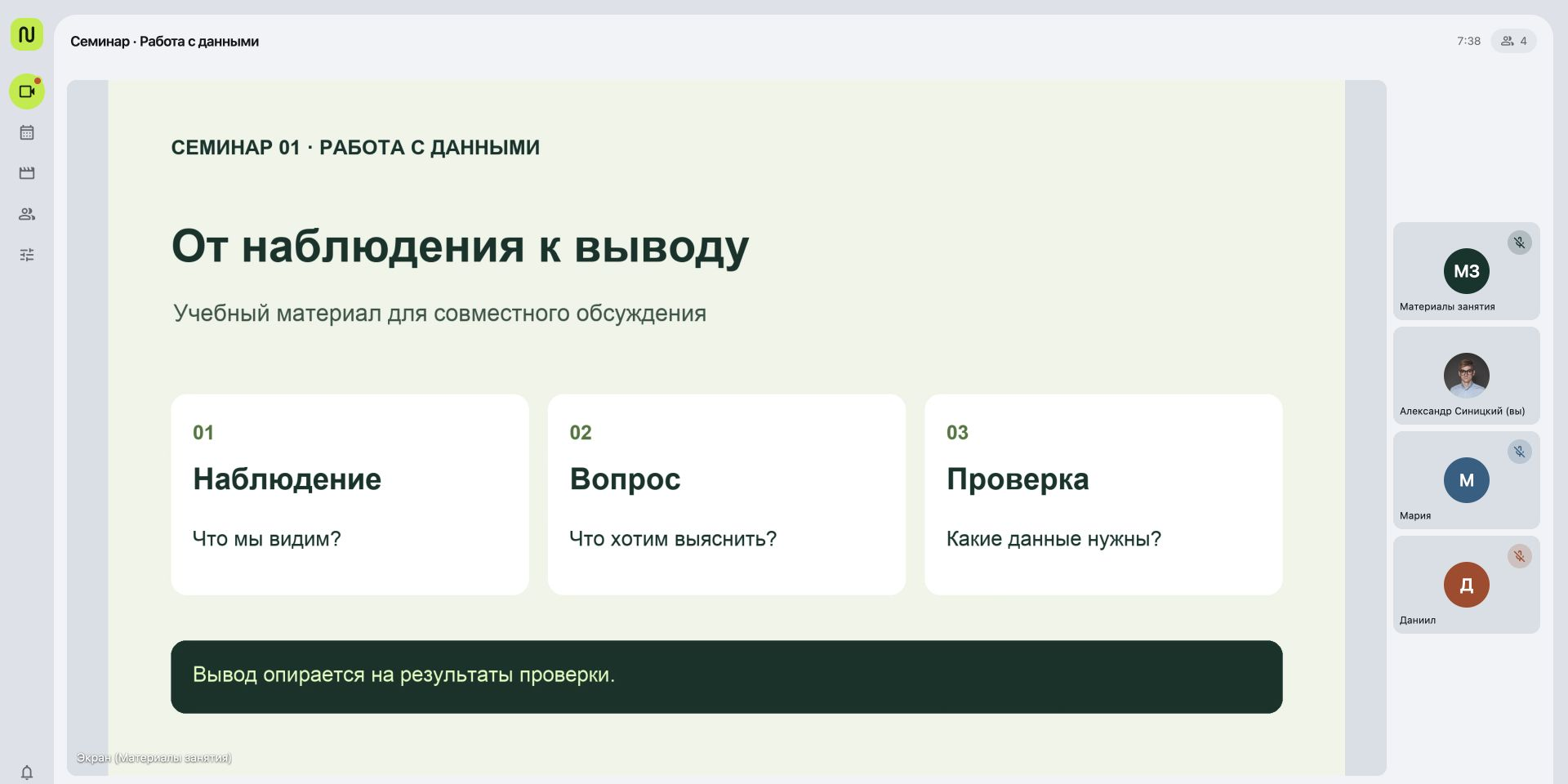
A shared view of the work you are discussing

Open the material in your usual application on a computer and share the relevant window in Planaro Meet. Meeting chat keeps a source link, question or short note alongside the conversation.

A learner can join by link as a guest. To review their work, a participant on a computer can share their own window after the current share ends. Use the Planaro calendar to arrange a follow-up session.

Planaro Meet showing shared teaching material beside the participants.
Teaching material shared in a Planaro Meet session. View full size ↗

1. Open the invitation and check the meeting

Get the link in advance and confirm the date and time. The organiser creates the meeting; a participant can join as a guest without a separate account.

Open the invitation on the phone you will use for the lesson. Check that you have reached the intended meeting before starting the task.

2. Prepare audio and a place to work

Check that both sides can hear. If the same meeting is also open on a nearby device, use audio on just one to avoid duplicate playback.

Position the phone so the learner can see the material and work. Prepare paper or the required document for a written task.

3. Check a real part of the assignment

Show a passage containing a fraction, subscript, diagram label or text line. If it is too small, the teacher should enlarge the source material.

Provide the original separately for detailed reading. Practical work in a specialist application requires a suitable tool on the learner’s device.

4. Agree how to show the learner’s result

For paper work, prepare a readable image or a camera view that clearly shows the writing. Use a suitable computer when the practical task requires one.

After the meeting, retain the source material and next task. The organiser should review any agreed recording before sharing it.

Before the first session

Can the app show the teacher’s shared computer screen?

Yes. The Planaro mobile app can display a screen shared from the teacher’s computer.

Will I need a computer for practical work?

That depends on the assignment. Prepare a computer for work in CAD, a development environment or another desktop application. A phone can be used for the conversation and to view the teacher’s shared screen.

Does a learner need an account?

A participant can join an invited meeting as a guest. The organiser creates the meeting from their account.

Bring the next question into a shared view

Start with one task or question. Open the source material, create a meeting and send the invitation to your learners.