For teachers, tutors and study groups

Teach Biology Online with Planaro

Bring the diagram and the question into the same view. Use a Planaro call to trace a process, compare images and discuss how a student reached their explanation.

Keep your materials in the tools you already use. Explore Planaro Meet.

Start with the teaching task

A labelled picture is a starting point for an explanation

A learner may recognise the parts of a diagram yet struggle to explain the relationship between them. A shared image lets you move from naming a structure to discussing what happens, in which order and under which conditions.

Open a clear diagram or prepared slide and share its window in Meet. Keep the relevant question visible beside it, then ask the learner to connect an observation to their answer.

A teaching example: organise an explanation

  1. StructureIdentify the part shown in the source image.
  2. ProcessDescribe the change or sequence relevant to the question.
  3. EvidenceConnect the explanation to the image, data or stated conditions.
Use a complete source image with its labels and context.
A session in Planaro

A shared view of the work you are discussing

Open the material in your usual application on a computer and share the relevant window in Planaro Meet. Meeting chat keeps a source link, question or short note alongside the conversation.

A learner can join by link as a guest. To review their work, a participant on a computer can share their own window after the current share ends. Use the Planaro calendar to arrange a follow-up session.

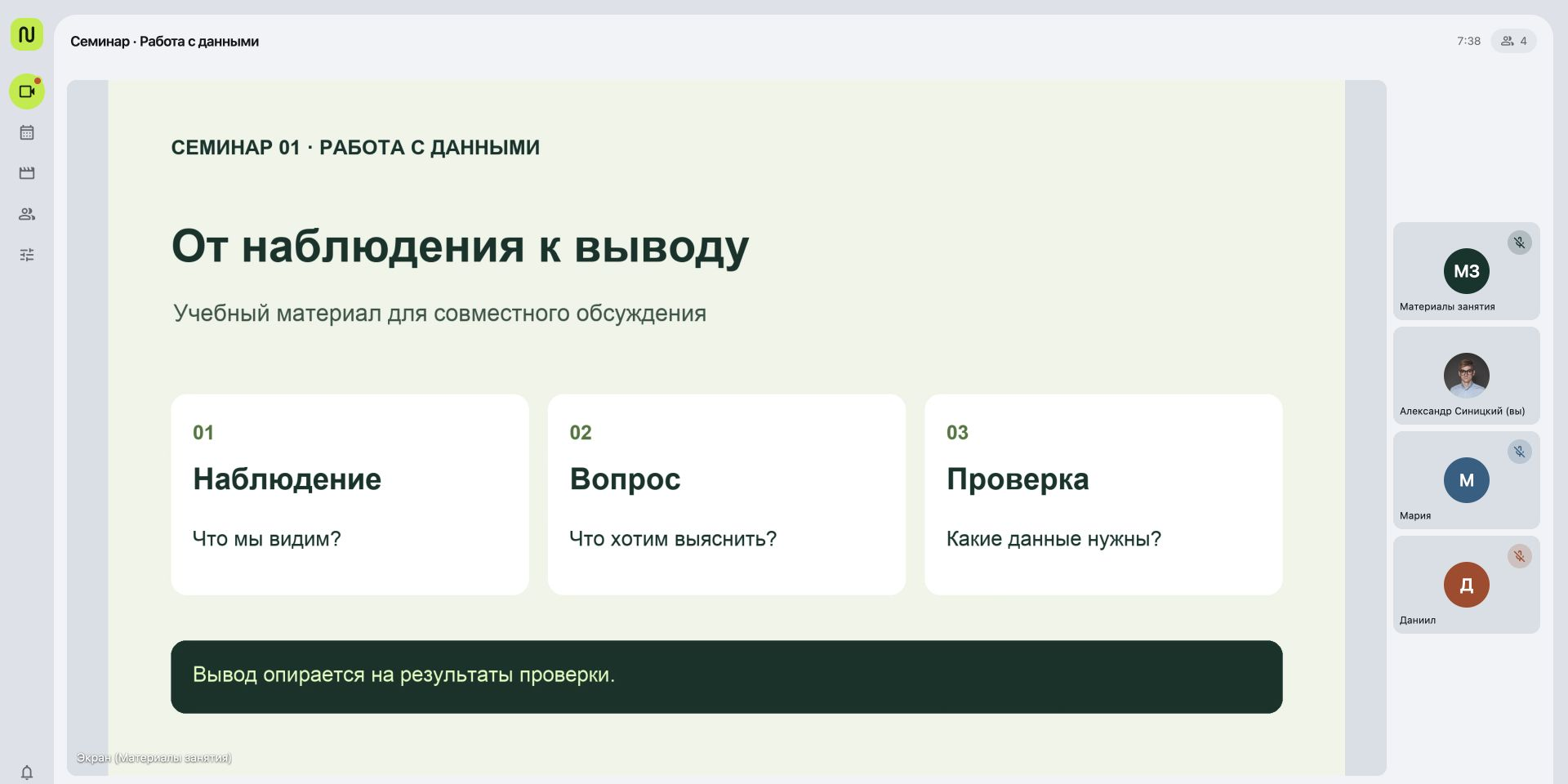
Planaro Meet showing shared teaching material beside the participants.
Teaching material shared in a Planaro Meet session. View full size ↗

Make images readable before adding detail

Choose an image with clear labels and enough resolution for the teaching task. Show the complete diagram before enlarging a small region, so the learner retains its place in the whole.

In a phone lesson, focus on one image at a time. The Planaro app can show the screen shared from your computer; enlarge the source instead of expecting the student to read a full page of small diagrams.

Compare processes using consistent views

Keep the same labels and level of detail when comparing two diagrams. Separate what is directly shown from the explanation you are asking the learner to construct.

For a sequence, retain the steps in view or use a prepared series of slides. An external document or whiteboard can hold annotations, with editing access arranged in that tool.

Discuss written answers as well as terminology

Show a learner’s answer beside the question and relevant material. Work through the causal link or missing condition rather than only replacing individual words.

A student on a computer can share their own document after you end the current share. Keep the revised answer in the source file so it can be reviewed after the call.

Use the meeting to review practical observations

Prepared photographs, data tables and observation notes can support discussion of practical work. Keep units, labels and the circumstances of an observation visible.

Practical activities follow the course’s own arrangements. For a recorded explanation, agree the recording beforehand and check terminology in any transcript before sharing it.

Before the first session

Can I show microscope images or prepared photographs?

Yes. Open the prepared image on your computer and share the relevant window at a readable scale.

Does Planaro assess biology answers automatically?

Assessment remains with the teacher and course tools. Meet provides the call, shared screen and meeting chat for discussing the answer.

Does a learner need an account?

A participant can join an invited meeting as a guest. The organiser creates the meeting from their account.

Bring the next question into a shared view

Start with one task or question. Open the source material, create a meeting and send the invitation to your learners.