For teachers, tutors and study groups

Teach Chinese Online with Planaro

Make characters and tone marks large enough to examine together. Use Planaro to discuss pronunciation, work through a passage and review the learner’s writing.

Keep your materials in the tools you already use. Explore Planaro Meet.

Start with the teaching task

Keep the spoken explanation beside the written form

A beginner’s question may concern a small tone mark or one part of a character. A shared document lets you enlarge that detail while keeping its use in context.

Open your chosen material, dictionary or external whiteboard and share its window in Meet. The learner can refer to the written form while responding aloud, with pronunciation feedback coming from the teacher.

A sample for checking display size

mā · má · mǎ · mà

Pinyin tone marks

你好

Characters in the source material
Use examples that match the learner’s current topic and the notation used in your course.
A session in Planaro

A shared view of the work you are discussing

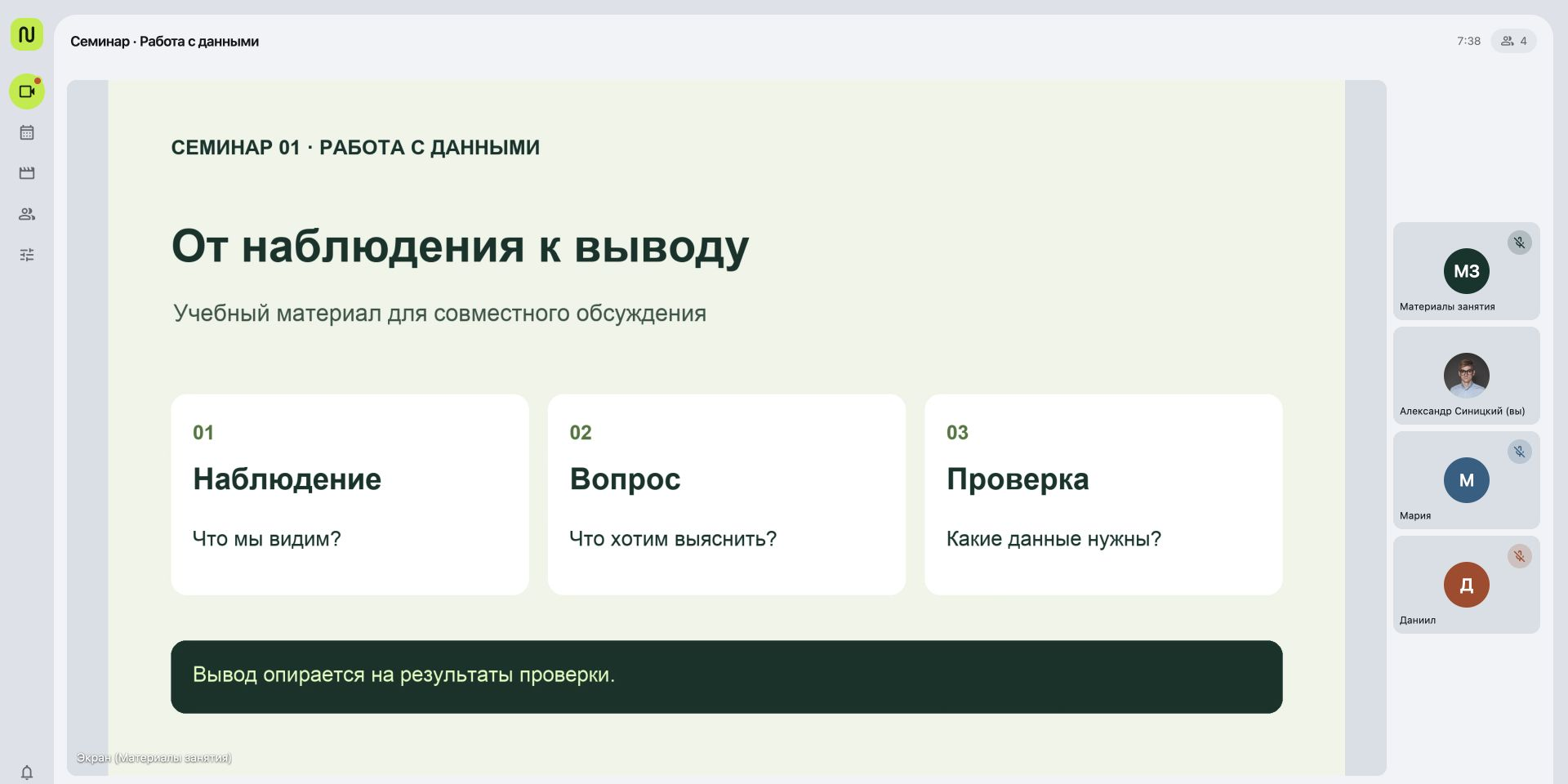
Open the material in your usual application on a computer and share the relevant window in Planaro Meet. Meeting chat keeps a source link, question or short note alongside the conversation.

A learner can join by link as a guest. To review their work, a participant on a computer can share their own window after the current share ends. Use the Planaro calendar to arrange a follow-up session.

Planaro Meet showing shared teaching material beside the participants.
Teaching material shared in a Planaro Meet session. View full size ↗

Connect sound, pinyin and characters

Arrange the expression, the transcription you use and a helpful context clearly in the source material. You can return to each part without losing the example under discussion.

Chat is useful for a brief note. Keep a longer vocabulary table in a document, with enough zoom for the tone marks to remain clear on a smaller screen.

Review handwriting and character structure

Open a prepared image of the learner’s work or share an external writing surface. If handwriting is shown through a camera, check that the relevant strokes are readable before beginning the detailed discussion.

A student working on a computer can share their own window. Writing and editing happen in the chosen tool; Meet carries the shared view and conversation.

Move from the written example into dialogue

Leave a short topic or image visible and continue speaking. When needed, return to the written expression, clarify its form and try it again in a response.

If the task uses source audio, agree how to play it and provide its link separately. Test the call audio with the learner’s actual device before the first lesson.

Keep the original notation for practice

Retain the source notes with the intended fonts, tone marks and examples. A small set drawn from the discussion makes a useful follow-up task.

Record the Planaro session by agreement if a learner needs to revisit an explanation. Review any automatic transcript and Chinese word forms against the original materials.

Before the first session

Does Planaro automatically assess tones?

The teacher gives pronunciation and tone feedback. This workflow uses live audio, shared material and conversation.

Can a learner watch from a phone?

The Planaro app can display a screen shared from the teacher’s computer. Check character and tone-mark readability on that device in advance.

Does a learner need an account?

A participant can join an invited meeting as a guest. The organiser creates the meeting from their account.

Bring the next question into a shared view

Start with one task or question. Open the source material, create a meeting and send the invitation to your learners.