For teachers, tutors and study groups

Teach School Computing Online with Planaro

Show how one action changes the result: copying a formula, following an algorithm or checking a condition. Planaro keeps the working window and the conversation together.

Keep your materials in the tools you already use. Explore Planaro Meet.

Start with the teaching task

A spreadsheet error may come from one changing reference

The first row is correct, but copying the formula produces unexpected values. To discuss the cause, retain the inputs, formula and reference that moved.

Share the spreadsheet in Meet and repeat the action. A learner can then show their own window from a computer and explain the expression they used.

Relative and absolute references

RowFormula
First=B2*$E$1
Next=B3*$E$1

B2 changes to B3; $E$1 stays fixed.

The spreadsheet runs in your selected tool while Meet shares its window.
A session in Planaro

A shared view of the work you are discussing

Open the material in your usual application on a computer and share the relevant window in Planaro Meet. Meeting chat keeps a source link, question or short note alongside the conversation.

A learner can join by link as a guest. To review their work, a participant on a computer can share their own window after the current share ends. Use the Planaro calendar to arrange a follow-up session.

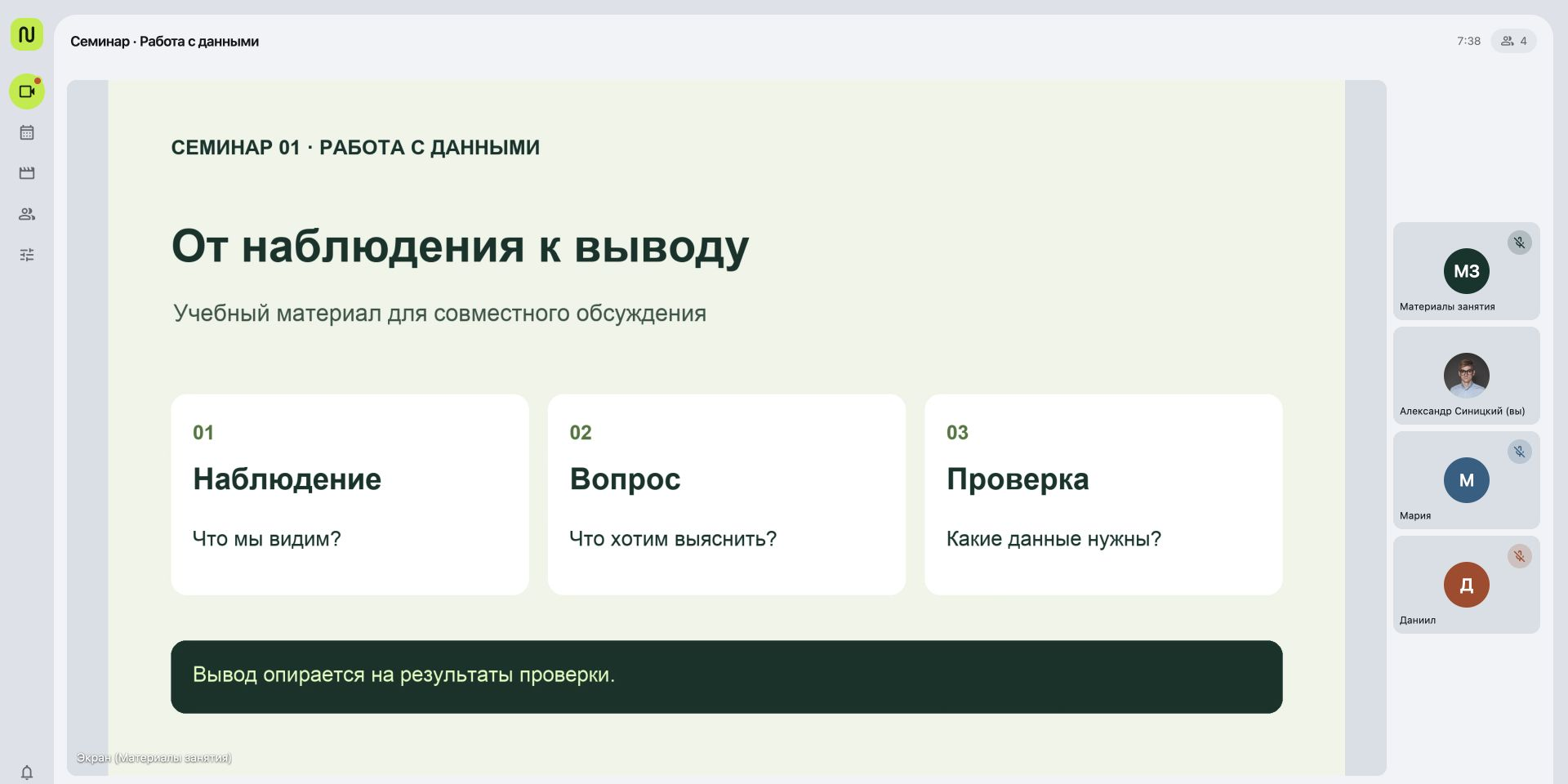
Planaro Meet showing shared teaching material beside the participants.
Teaching material shared in a Planaro Meet session. View full size ↗

Trace the state of an algorithm

Keep the task, algorithm and a small variable table together. Review how the state changes after each relevant step.

For logic problems, retain the expression and selected truth-table row. Use consistent notation when moving between examples.

Make spreadsheet inputs visible

Enlarge the table so cell addresses and the formula bar are readable. Show neighbouring rows when discussing copying or ranges.

Different spreadsheet tools may use different function names or menus. Review the actual expression in the learner’s window and explain the intended operation.

Prepare the practical environment

Provide the teaching file and required application in advance. Students need access to the relevant tool for independent practical work.

The Planaro app can show the teacher’s shared computer screen on a phone. Watching an explanation and running the exercise are separate device requirements.

Keep tasks aligned with the course

Use current requirements for the curriculum or exam you teach. Retain the task version, input files and expected form of the answer.

After the lesson, keep the file and next checking step. A recording can preserve an agreed explanation, with the working data stored separately.

Before the first session

Can a student show their own solution?

A student on a computer can start a screen share after the teacher ends the current one.

Do tasks have to be moved into Planaro?

No. Keep them in your chosen course system or files and use Meet for the lesson discussion.

Does a learner need an account?

A participant can join an invited meeting as a guest. The organiser creates the meeting from their account.

Bring the next question into a shared view

Start with one task or question. Open the source material, create a meeting and send the invitation to your learners.