A practical teaching guide

How to Share Code in an Online Lesson

Open the right project version, prepare a reproducible example and check the editor’s font size. Use this sequence to connect the code with its result during a Planaro lesson.

Keep your materials in the tools you already use. Explore Planaro Meet.

Start with the teaching task

Start with one transition rather than the whole project

The teacher knows the application, but the student sees many tabs without a clear starting point. Choose a function, input and output that can be examined together.

Share the relevant window in Meet. Move to another file or terminal as the discussion requires, retaining a clear question for each action.

Prepare these references

  1. VersionWhich file and project state are open?
  2. InputHow can the example be reproduced?
  3. OutputWhat was expected and what happened?
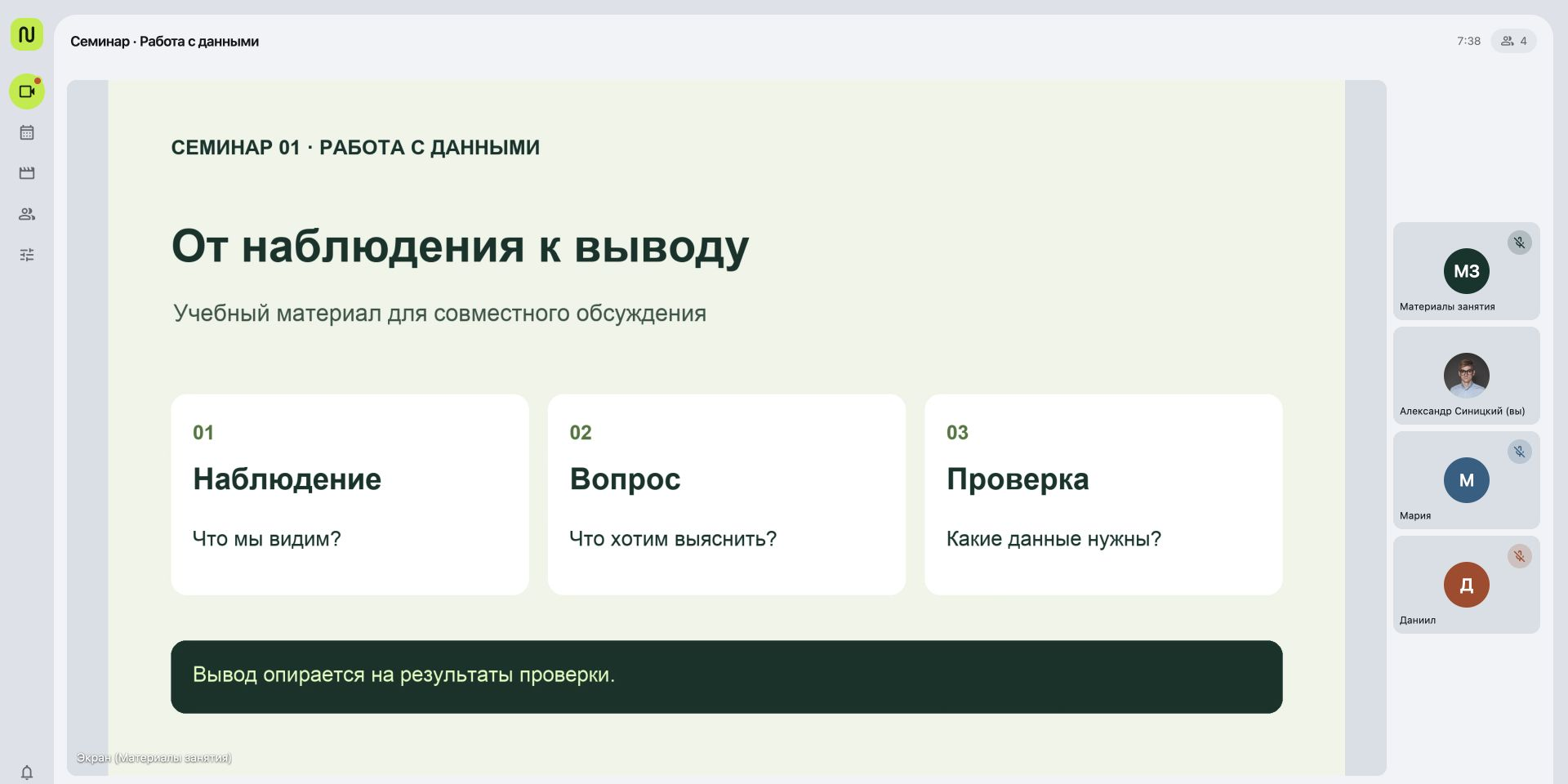
Code runs in your selected environment while Meet shares the view and conversation.
A session in Planaro

A shared view of the work you are discussing

Open the material in your usual application on a computer and share the relevant window in Planaro Meet. Meeting chat keeps a source link, question or short note alongside the conversation.

A learner can join by link as a guest. To review their work, a participant on a computer can share their own window after the current share ends. Use the Planaro calendar to arrange a follow-up session.

Planaro Meet showing shared teaching material beside the participants.
Teaching material shared in a Planaro Meet session. View full size ↗

1. Open the project and a small example

Prepare the file, input and launch command before the meeting. Close unrelated projects and windows containing secrets.

Check required dependencies or services in advance so the live session can focus on the program.

2. Make the editor readable

Increase the font size and show the relevant lines with enough context. Keep line numbers or another reliable reference for questions.

In the terminal, retain the command beside its output. Unrelated messages in separate tabs are harder to connect.

3. Share and check the actual view

Start screen sharing from the computer in Planaro and select a suitable option in the browser’s picker. Check a real line of code on the student’s device.

Enlarge the source editor if needed. Students can watch the shared computer screen in the Planaro app on a phone; independent execution requires a suitable development environment.

4. Switch to the student’s view and keep the example

End the teacher’s share when reviewing the student’s computer work. The student starts their own share and explains the action in their environment.

Keep the version, input and next check in the teaching project. Review any agreed recording before sharing it and retain the source code separately.

Before the first session

Can we edit one file together?

Collaborative editing depends on your editor or external environment. Screen sharing itself provides a view of the window.

How should I show an error?

Keep the launch command, input and corresponding output visible together, enlarging the source terminal if needed.

Does a learner need an account?

A participant can join an invited meeting as a guest. The organiser creates the meeting from their account.

Bring the next question into a shared view

Start with one task or question. Open the source material, create a meeting and send the invitation to your learners.